
Download NoMachine – Secure Remote Desktop Access Tool
Overview
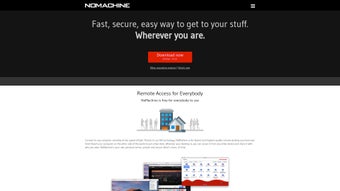
NoMachine is a versatile remote‑desktop application that lets you connect to any computer from virtually any device. Whether you are on a Windows laptop, a macOS iMac, an Android tablet, or a Linux workstation, NoMachine creates a fast, encrypted tunnel that makes the remote machine feel as if it were sitting right in front of you. The software is free for personal use, and the setup process is intentionally straightforward: install the client on every device you want to control, and each instance receives a unique address and a password‑protected session ID.
This design eliminates the need for complex port‑forwarding or VPN configurations, while still delivering industry‑standard AES‑256 encryption for every connection. Once a session is established, NoMachine streams the desktop at up to 60 fps, supporting high‑resolution displays, multi‑monitor setups, and even peripheral forwarding for printers, microphones, and USB devices. The interface mirrors the native look of each operating system, so you won’t feel out of place whether you’re navigating on macOS or Android.
Because the software updates automatically in the background, you always benefit from the latest security patches without manual intervention. For freelancers who need to access a powerful workstation from a lightweight laptop, IT admins who must troubleshoot remote servers, or families who want to share a home PC with a tablet, NoMachine offers a reliable, secure, and free solution that scales across platforms and use‑cases.
Key Features
- Cross‑Platform Compatibility: Native clients for Windows, macOS, Linux, Android, and iOS ensure you can connect from almost any device.
- High‑Performance Streaming: Up to 60 fps video, support for 4K displays, and adaptive bitrate that keeps the experience smooth on slow networks.
- End‑to‑End Encryption: AES‑256 encryption protects every session against eavesdropping and man‑in‑the‑middle attacks.
- Peripheral Forwarding: Use local printers, microphones, webcams, and USB devices on the remote machine without extra drivers.
- File Transfer & Clipboard Sync: Drag‑and‑drop files, share clipboard content instantly, and synchronize directories across machines.
- Multi‑Monitor Support: Access all monitors of the remote host, switch between them, or mirror a single screen for presentations.
- Zero‑Configuration Setup: No need to open ports or configure firewalls; the software negotiates connections automatically.
- Session Recording (Enterprise): Capture remote sessions for compliance or training purposes (available in the paid edition).
- Customizable UI Themes: Choose light or dark mode, and adjust resolution scaling to match your preferences.
- Automatic Updates: Background updates keep the client and server components patched without user intervention.
Installation, Usage & Compatibility
Step‑by‑Step Installation
Downloading NoMachine is as simple as clicking the Download button on the official website. Choose the installer that matches your operating system—Windows (.exe), macOS (.dmg), Linux (deb/rpm), Android (Play Store), or iOS (App Store). After the installer finishes, launch the application; it will automatically start a background service that listens for incoming connections. During the first run, NoMachine generates a unique machine address (e.g., NX-12345678) and prompts you to set a strong password. Write down this address, as you will need it on any client device that wishes to connect.
Connecting to a Remote Machine
On the client device, open NoMachine, click “Add a new connection,” and enter the remote address and password. The software will detect the best transport protocol (direct LAN, WAN, or relay) and establish an encrypted tunnel. Once connected, you are presented with a full desktop view. You can toggle between “Desktop,” “Files,” and “Media” modes using the left‑hand toolbar. To transfer files, simply drag them from your local file explorer into the remote window, or use the built‑in file manager to browse both sides simultaneously.
Operating System Support
NoMachine supports the following platforms:
- Windows 10, 11, Server 2016‑2022 (64‑bit)
- macOS 10.15 Catalina and later (Intel & Apple Silicon)
- Linux distributions (Ubuntu, Debian, Fedora, CentOS, openSUSE) – both 32‑bit and 64‑bit
- Android 7.0+ (phones, tablets, Chrome OS)
- iOS 13+ (iPhone, iPad) – limited to screen sharing mode
The application automatically detects the host’s GPU capabilities and uses hardware‑accelerated video encoding when available, which explains the buttery‑smooth performance on modern machines. For older hardware, NoMachine gracefully falls back to software rendering, still maintaining a usable experience.
Pros, Cons & Frequently Asked Questions
Pros
- Free for personal use with no hidden fees.
- Lightning‑fast remote desktop experience, even over modest broadband.
- Strong AES‑256 encryption ensures secure connections.
- Zero‑configuration networking eliminates firewall headaches.
- Broad OS support lets you mix Windows, macOS, Linux, Android, and iOS.
- Peripheral and clipboard forwarding boost productivity.
- Automatic background updates keep the software current.
Cons
- Advanced features (session recording, multi‑user licensing) require a paid Enterprise license.
- iOS client is limited to view‑only mode; remote control is unavailable.
- Initial setup still demands installing the server component on every host.
- Performance may degrade on very low‑end devices lacking hardware acceleration.
- Corporate environments sometimes block the default relay ports, requiring manual port forwarding.
Frequently Asked Questions
Is NoMachine really free for personal use?
Yes. The personal edition of NoMachine is completely free and includes all core remote‑desktop functions, unlimited connections, and regular security updates. Only enterprise‑grade features such as session recording and multi‑user licensing require a paid subscription.
Can I use NoMachine on a mobile data connection?
Absolutely. NoMachine adapts its video bitrate based on available bandwidth, so you can connect over 4G/5G or Wi‑Fi. However, for the smoothest experience on cellular networks, enable the “Low‑Bandwidth Mode” in the client settings.
How secure is the connection between devices?
All sessions are encrypted with AES‑256, the same level used by major banking services. NoMachine also employs certificate‑based authentication to prevent man‑in‑the‑middle attacks, and passwords are never transmitted in plain text.
Do I need to open ports on my router?
In most cases, NoMachine works out‑of‑the‑box using NAT traversal and a relay server. If you are in a highly restricted corporate network, you may need to allow outbound TCP port 4000 or configure a custom port in the server settings.
Can I transfer files between the host and client?
Yes. NoMachine includes a built‑in file manager that lets you drag‑and‑drop files across the remote session. The transfer uses the same encrypted tunnel, so your data remains private.
Conclusion & Call to Action
In the crowded field of remote‑desktop utilities, NoMachine distinguishes itself with a combination of speed, security, and true cross‑platform flexibility. Its free personal edition provides everything most users need—high‑resolution streaming, peripheral forwarding, and a hassle‑free connection workflow—without demanding a subscription or a steep learning curve. While power users in large enterprises may eventually gravitate toward the paid Enterprise plan for advanced management tools, the core experience remains robust enough for freelancers, students, and home users alike. If you’re looking for a reliable, secure, and fast way to access your workstation from a coffee shop, a hotel room, or even your smartphone, NoMachine is a solid choice that delivers on its promises.
Ready to try it yourself? Download NoMachine now and start a free, secure remote session within minutes. Remember to keep the software updated to benefit from the latest performance improvements and security patches. Happy remote working!
Overall Rating: 4.5 / 5







